
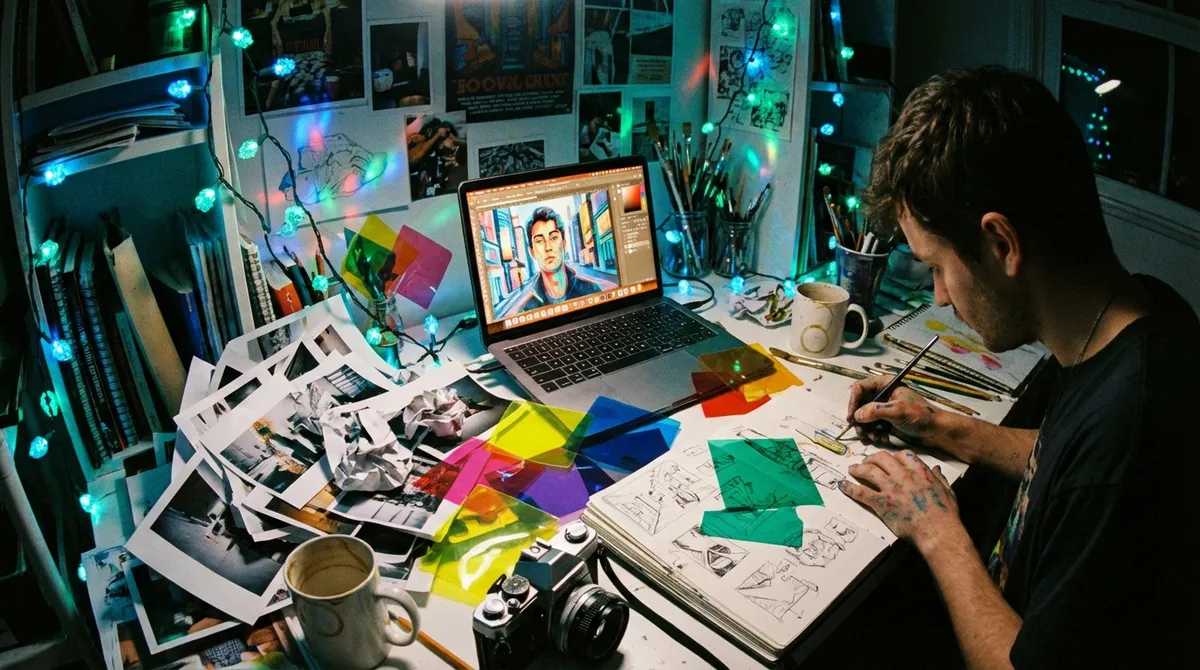
Photo editing isn’t about “fixing” bad shots—it’s about finishing the story your camera started. Every slider you move, every curve you nudge, is a decision about mood, meaning, and memory. On SnapFresco, we don’t treat editing as a secret technical club; we treat it like a studio filled with color, light, and possibilities. This is your invitation to step inside, experiment boldly, and let your photos feel as alive as the moments they came from.
Start With Intention, Not With Sliders
Before you touch a single control, ask one simple question: What do I want this image to feel like? Calm? Electric? Nostalgic? Cinematic? That feeling becomes your editing compass.
Open a recent photo and, before editing, jot down three words that describe the mood you’re chasing. For a misty forest scene, it might be “quiet, mysterious, cool.” For a city concert, maybe “loud, neon, chaotic.” Those words will guide your choices:
- Quiet moods lean toward softer contrast, muted colors, and gentle highlights.
- Energetic moods welcome stronger contrast, saturated colors, and crisp details.
- Nostalgic moods often pair warm tones, subtle fades, and softer sharpness.
This intention-first approach saves you from endless tweaking. Instead of randomly dragging sliders, you’re making decisions: “Does this increase or weaken the mood I want?” If it doesn’t serve the feeling, reset it and move on. Editing becomes purposeful, not overwhelming.
Build a Solid RAW Foundation
The most creative edits start with technically strong files. Shooting RAW gives you room to push tones and colors without your image falling apart. If your camera allows it, set it to RAW or RAW+JPEG so you always keep a flexible digital negative.
For general shooting, try these starting points:
- ISO: Use the lowest ISO you can while keeping your shutter speed safe (e.g., 1/125s for still subjects, 1/250s+ for moving people). Lower ISO means cleaner files and smoother edits.
- Aperture: For portraits, f/1.8–f/2.8 for dreamy backgrounds. For scenes or travel, f/5.6–f/8 for more detail across the frame.
- White Balance: Use Auto WB for flexibility, or pick “Daylight,” “Shade,” or “Cloudy” presets to keep color predictable. You can refine it in editing, but better starting color means less correction later.
- Exposure: Slightly underexpose tricky scenes (by –0.3 to –0.7 EV) to protect highlights. It’s often easier to lift shadows than to rescue blown-out skies.
In your editor (Lightroom, Capture One, Snapseed, etc.), always start with basic global adjustments:
- Exposure – Set the overall brightness to match reality or your intended mood.
- White Balance – Fix strong color casts; neutral skin and whites are a good anchor.
- Highlights & Shadows – Pull back highlights for sky and skin detail; raise shadows moderately to reveal texture without flattening everything.
- Contrast – Add enough to define shapes, but don’t crush shadows into inky blobs unless that’s your style.
Think of this stage as priming your canvas. It’s not the “look” yet; it’s the clean base your creativity will build on.
Shape Light and Mood With Local Adjustments
Once your global settings are dialed in, the magic happens at the local level—editing specific parts of the image instead of everything at once. This is where you begin painting with light.
Use tools like radial filters, linear gradients, and brushes to nudge the viewer’s eye:
- Radial filter for spotlighting: Place a subtle radial mask over your subject and slightly lift Exposure (+0.1–0.3), Clarity/Texture (+5–10), or Saturation (+3–5). Invert the mask if your editor requires it. You’re creating a soft “stage light” without anyone noticing.
- Linear gradient for skies: Drag a gradient down from the top of a landscape and lower Highlights and Exposure a bit. Adjust Temperature slightly cooler for stormy drama or warmer for golden-hour glow.
- Brush for distractions: Use a brush to gently darken or desaturate bright, distracting elements at the frame’s edges. Your image will instantly feel more composed.
Technique breakdown for a moody portrait:
- Global: Slightly underexpose overall (–0.2 to –0.4), reduce Highlights, lift Shadows a touch, and add mild Contrast.
Local:
- Radial filter on the face: +0.2 Exposure, +5 Texture, +3 Saturation. - Background brush: –0.3 Exposure, –5 Saturation. 3. Final: Add a soft vignette to deepen edges and keep focus locked on the subject.
Exercise: Take a simple photo—a person by a window, a coffee cup on a table, a plant near a wall. Create three versions using only local adjustments: one bright and airy, one dark and dramatic, one split between warm foreground and cool background. Compare them and notice how the same raw capture can tell different emotional stories.
Color Grading: Turn Vibes Into Visuals
Color grading is where your images start to feel like movies, songs, or memories. Instead of thinking “more blue” or “less red,” think in emotional pairs:
- Warm vs. cool
- Soft vs. intense
- Clean vs. vintage
Most modern editors give you three color-grading wheels or controls: shadows, midtones, and highlights. Use them like instruments in a band:
- Shadows: Set the emotional base. Teal or blue shadows suggest night, melancholy, or cool calm. Warmer shadows feel cozy, earthy, or analog.
- Midtones: Shape skin and main subjects. Keep them natural or slightly warm so people look alive.
- Highlights: Decide the “temperature” of your light source. Golden highlights feel like sunset; cool highlights feel like fluorescent or twilight.
Try this cinematic color recipe:
- Shadows: Push slightly toward teal (low saturation, just a hint).
- Highlights: Nudge toward warm orange/gold.
- Contrast: Increase slightly to make the cool/warm split feel deliberate.
- Saturation: Reduce global saturation slightly, then selectively boost colors that matter (skin, important clothing, a neon sign, etc.).
Creative exercise: Pick one photo and create two color stories:
- Summer nostalgia: Warm white balance, golden highlights, slightly faded blacks (lift your black point or add a gentle tone curve), desaturated blues, warm skin tones.
- Urban night: Cooler white balance, teal shadows, restrained highlights, deeper blacks for contrast, and selective saturation on reds or neons.
You’ll train your eye to see color as emotion, not just a technical setting.
Sharpening, Detail, and Noise: The Finishing Touches
Detail work is the equivalent of the final brush strokes on a painting. Overdo it and your photo looks crunchy and artificial; underdo it and your image can feel soft and unfinished.
Here’s a balanced workflow:
- Sharpening:
- For portraits, keep sharpening moderate (Amount around 40–70 in Lightroom) and use masking so detail is applied mainly to edges, not smooth skin.
- For landscapes or cityscapes, slightly higher sharpening and more Texture or Clarity can bring out architecture and foliage.
- Noise reduction:
- High ISO shots (3200+) benefit from Luminance Noise Reduction, but be gentle. Too much will create plastic-looking textures.
- Add a touch of Grain afterward if the image feels “too clean”—this can bring back a natural feel and hide minor noise.
- Clarity vs. Texture:
- Clarity emphasizes edges and midtone contrast—great for gritty streets, risky for faces.
- Texture boosts fine detail like fabric, hair, and surfaces, often more forgiving on skin when used lightly.
Camera-side, you can make this stage easier:
- Use the lowest ISO you can manage for the situation.
- Expose so you’re not forced to rescue deeply underexposed shadows (where noise loves to live).
- Slightly stop down (f/4–f/8) when you want crisp detail across the frame.
Exercise: Pick a portrait, a landscape, and an indoor low-light photo. For each, create an “overprocessed” version on purpose—too much clarity, too much noise reduction, too much sharpening. Then dial each one back to the point where it looks natural. That threshold, where detail feels alive but not harsh, is what you’re training yourself to recognize.
Develop Your Own Editing Style Through Play
Style isn’t a preset you buy; it’s the trail your experiments leave behind. To discover it, you need repetition, curiosity, and a bit of organized chaos.
Try this practical system:
- Create a “Style Lab” folder: Drop in 10–20 of your favorite raw photos—varied subjects but all images you care about.
- Edit in batches:
- Day 1: Focus on soft, airy looks—lower contrast, brighter exposure, light pastel colors.
- Day 2: Explore deep, dramatic looks—strong contrast, richer shadows, moodier tones.
- Day 3: Experiment with color splits—warm vs cool, muted vs bold.
- Save your favorites as presets or recipe notes: Even if your editor doesn’t support presets, write down key numbers: White Balance, Contrast, Saturation, Color Grading hues, etc.
Over time, look for patterns:
Do you always soften highlights? Do you prefer cooler shadows? Slightly desaturated greens? That’s the skeleton of your style.
Camera settings can support your style too:
- Love bright, airy looks? Slightly overexpose in-camera (+0.3 to +0.7 EV) in safe lighting, and shoot in scenes with soft, even light (window light, open shade).
- Prefer contrasty, dramatic frames? Embrace side light, backlight, and lower-key exposures (–0.3 to –1 EV), then deepen that mood in editing.
Above all, give yourself permission to “break” your own rules. Style isn’t a cage; it’s a home base you can always return to after wandering.
Conclusion
Photo editing is where your intuition, your technical craft, and your personal history collide. It’s not about copying someone else’s look; it’s about tuning your images until they sound like your voice. Every adjustment is a question: What am I trying to say with this light, this color, this detail?
Start with intention, build a clean foundation, shape light locally, grade your colors like emotions, and refine the details with care. Then, play—relentlessly. The more you experiment, the more your photographs will stop looking “edited” and start looking unmistakably yours.
Your next image doesn’t have to be perfect. It just has to be honest, and you can sculpt that honesty one thoughtful slider at a time.
Sources
- [Adobe: Photography and Editing Tutorials](https://helpx.adobe.com/photoshop/tutorials.html) – Official Adobe tutorials covering Lightroom and Photoshop techniques, including local adjustments and color grading
- [Nikon Learn & Explore: Master the Art of RAW](https://www.nikonusa.com/en/learn-and-explore/a/products-and-innovation/master-the-art-of-raw.html) – Explains the benefits of shooting RAW and how it supports flexible, creative editing
- [Harvard Digital Photography Course Materials](https://cs50.harvard.edu/x/2023/projects/4/filter/) – Educational resource touching on how digital images work and how filters and adjustments affect them
- [Cambridge in Colour: Understanding Digital Camera Exposure](https://www.cambridgeincolour.com/tutorials/camera-exposure.htm) – In-depth breakdown of exposure settings and how they influence post-processing potential
- [Sony Alpha Universe: Guide to Color Grading Your Photos](https://alphauniverse.com/stories/how-to-color-grade-your-photos/) – Walkthrough of color grading concepts and practical approaches for creative looks